
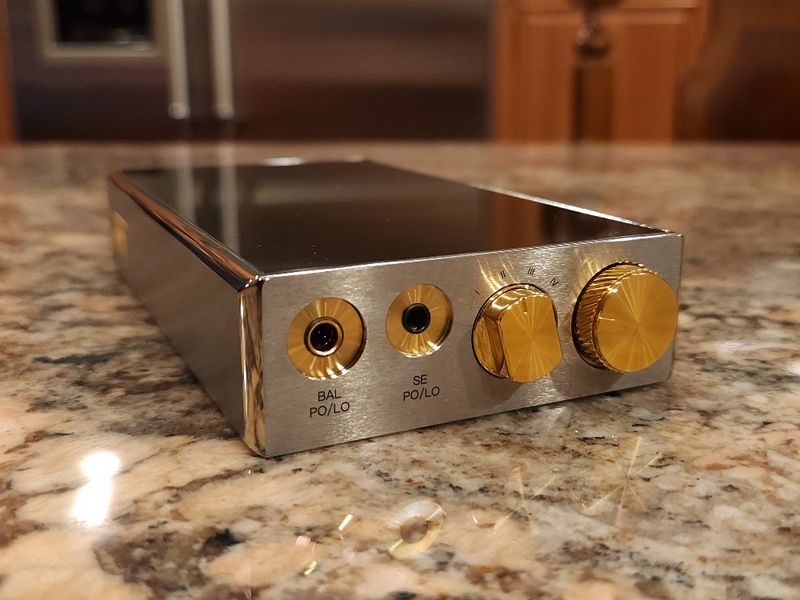
GUI.
As already mentioned, similar to DX2xx/3xx and MAXs, 320Max has a dual boot system design where you have access to either full Android OS with its Mango audio app or stripped-down Mango OS with a main interface being that audio app itself. Each one has its advantages depending on user requirements. With access to full Android, you have support of WiFi and Bluetooth, can load other apps, stream audio, etc, though you have to be aware that stock 320Max doesn’t have Google Play. Instead, it comes pre-loaded with APKPure and CoolApk apps where you can search and download most of the apps to install on your DAP. But the easier way is to download and install Google Play straight from APKPure which I did without any issues.
One word of advice, once you install Google Play store, get rid of APKPure and CoolApk apps because they are only wasting resources while running in the background and constantly checking your installed apps.

Mango OS is a strip down version of operating system built around Mango app interface where the focus is strictly on audio performance without a waste of OS resources on other tasks. Switching between these two OS is very simple, when you boot up into Android and press’n’hold Power button you have a choice of switching to Mango, Power off, or Restart. When you switch to Mango, DAP is rebooted and will continue to boot into Mango OS every time until you go to Settings->Advanced and select Android System. Once Android System is selected, it will only boot into Android OS until you switch back to Mango OS.
Under full Android OS boot up, DX320Max comes with an updated version of Mango app, v3.4.1. There are a few differences between Mango app and Mango OS interface, they are not identical, and I will cover it later in the review, including differences in sound.
The view of the embedded song/album artwork, if one is available, looks good on 320Max 5” display, not the same as 6.5” DX320 display, but still pretty good by my standards. If embedded artwork is not available, a default image is displayed. As already introduced in v2 app of DX220, one change here is that you no longer have to swipe left/right to get to the file/song management and settings. The main playback screen has a more logical layout where you swipe the artwork display left/right to skip between the songs, and access song search and file management from a shortcut in the upper left corner and settings from a shortcut in the upper right corner. Another useful feature I appreciate is in the lower right corner of artwork window where you have 3-dot shortcut to bring up Now Playing list of songs to scroll through.
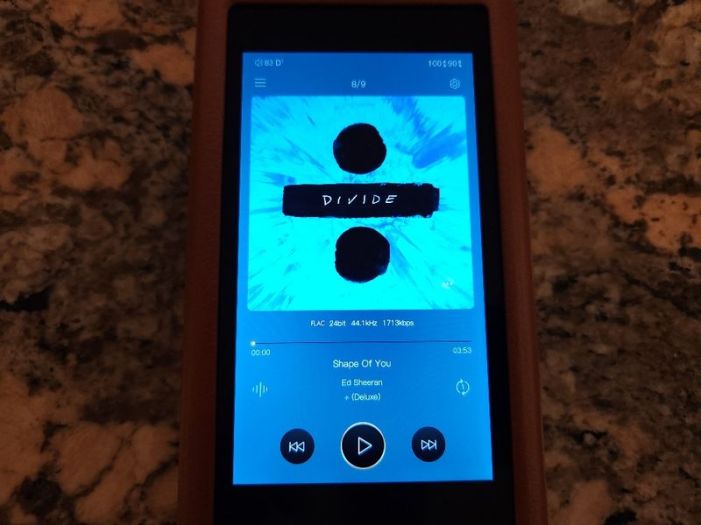
Below the artwork, you have track info (bit/rate/format) and a scrub bar to advance through the song where you can tap anywhere to skip. While in early versions of Mango app you had to tap and drag the current song position to a new one, starting with v2 you can fast forward/back by simply tapping on a timeline like you would on your smartphone. Unfortunately, this only works in Mango app, not under Mango OS. Below it, you have a shortcut on the left to provide a more detailed info about the song (including adding to playlist or to delete), and another shortcut on the right to switch between playback modes (play in order, repeat list, shuffle, repeat current song). Play/Pause and Skip next/prev buttons are big enough and located at the bottom.
In Music search and track management, you can search through your songs (since it is indexed) or by browsing the internal storage directory. Under indexed list, you can view All Music, or sort by Album, Artist, Genre, Now Playing, and Playlist. Any song you long press will give you an option to Play, Add to playlist, or Delete. You also have a setting (3 vertical bars all the way on the right) to specify exactly what you want to see in navigation bar or how you want music to be sorted and viewed. The level of customization details here is quite impressive. Plus, all the way at the bottom you have a small area to see the currently playing song and to control its playback with play/pause button. Tapping on it takes you back to the main Playback screen.
In Settings Menu, you have access to Gapless (on/off), Ultimate mode (on/off), Play mode (order, loop, shuffle, repeat, folder play), EQ (on/off, brings you to Graphic/Parametric EQ screen), L/R Balance, 2 Digital filters, Media Scan, and Advanced Setting.

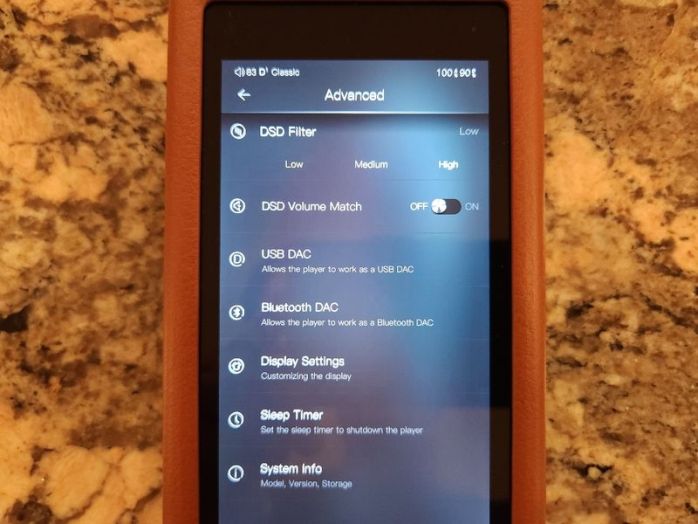
In Advanced settings you will find DSD Filter (low, medium, high), DSD Volume match (on/off), USB DAC, Bluetooth DAC, Display Setting, Sleep Timer, and System Info. This Advanced settings screen is very important since many people assume that USB DAC and Bluetooth DAC will be accessible from Android settings or notification bar, while you need to dig deeper to find it here.
Notification bar swipe down is also helpful where besides the usual WiFi, Bluetooth, and Auto-Rotate shortcuts, you can also change PO/LO or switch between 2 Digital Filters. I do wish they would include a shortcut to get to Audio Settings.

Mango app vs Mango OS.
I’m sure many will be curious how does Mango app (in Android mode) compares to stripped down Mango OS. Here is a summary of some of the differences I found while testing 320Max. There could be more, but these stood out for me.
- Mango OS start up is faster, while Mango app/Android takes a little longer.
- Mango app (in Android) navigation is faster, while Mango OS has a slight lag.
- Mango app (in Android) has EQ and PEQ, while Mango OS has only EQ.
- In Mango app you can randomly tap on timeline to advance to any part of the song, in Mango OS you have to drag the pointer to a new position like in original DX200.
- In Mango app “Now playing” directory/list is accessible when you click in lower right corner of artwork window, while in Mango OS you have to tap upper left corner to get to music sorting where you view “Now playing” list.
There are also differences in sound between Mango app and Mango OS, and I will cover it in sound analysis section of the review.
EQ.
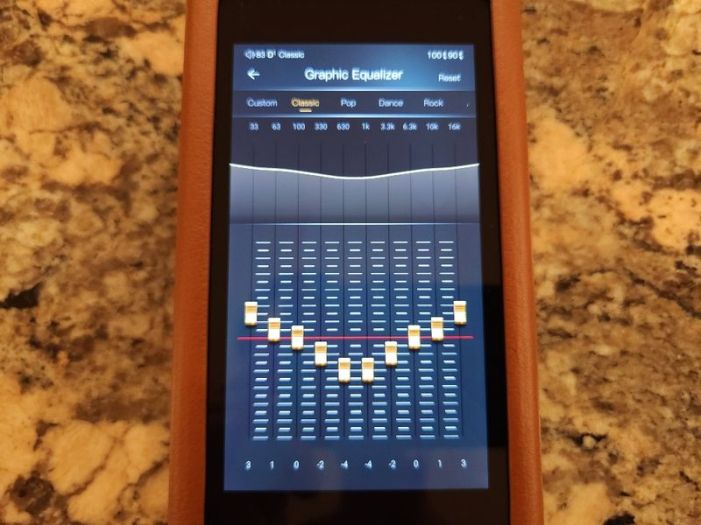
320Max offers a traditional Graphic EQ (EQ) where frequency bands are fixed, and you only adjust the gain with a slider. In Mango app (Android mode) you also get Parametric EQ (PEQ) where you have more controls over which frequency is being adjusted, bandwidth of the frequency being adjusted, the type of the filter used to adjust the frequency, and of course the gain of the adjustment. Here are my observations while testing EQ and PEQ.
Graphic EQ (EQ)
- When enabled, drops the volume to create extra headroom for band adjustment (to avoid clipping).
- Relatively clean 10-band EQ adjustment (33, 63, 100, 330, 630, 1k, 3.3k, 6.3k, 10k, 16k frequency bands).
- Whenever you adjust a band, you can see it being shown graphically above the EQ sliders, great visual feedback.
- 5 genre specific presets are included where each one could be adjusted further and reset to its original state.
Parametric EQ (PEQ)
- Includes 6 custom preset settings.
- When enabled, volume doesn’t drop.
- While adjusting, I didn’t hear any distortion.
- Each preset setting has 6 assignable filters/frequencies to shape the sound where each one is represented by a different color on the screen.
- Filter types: low pass filter, high pass filter, band pass filter, notch filter, all pass filter, peaking filter, low shelf filter, high shelf filter – peaking filter will be probably the most useful.
- Each filter has: Fc (center frequency, from 33 to 16k), Gain (-20 to 20 dB), Q factor (0.3 to 20) where smaller Q makes the bandwidth wider and bigger Q makes the bandwidth narrower.
- Fc and Gain could also be adjusted on the touch screen by dragging the pointer left/right and up/down.
- The sound is adjusted/updated in real time as you move the filter peak and frequency.

Page 4 – Sound Analysis and Pair up.
Page 5 – Comparison, Wired/wireless connection, and Conclusion.

 Twister6 Reviews
Hi, thanks for the last help in choosing Dx320 Max It’s already ordered and it’s on its way. I’m thinking of one more dap for jazz, blues, female and male vocals for mentor, jewel and phoenix, which one would you recommend hiby rs8 vs cayin n7?
LikeLike