

GUI.
Once you power up Opus#3, you will see theBit native audio app on top of the Android OS running in the background. The app itself is very intuitive with a clear layout and easy navigation which looks great on Opus#3 4” display.
Starting at the top across the Notification bar, in the upper left corner you will have Playback icon status and Repeat selection. Then, moving to the middle you have Volume icon with a step value (150 steps maximum), and in the right corner you have a battery indicator icon and a system clock.
Typical of Lollipop Android OS, you can swipe down the notification bar to reveal shortcuts of other controls. When swiped down, the notification area has a time with a day and a date, battery indicator with an exact percentage, and Setup icon. Below it you have a Brightness adjustment bar, Wi-Fi enable icon with drop-down box to get into wi-fi setup menu, Bluetooth enable icon with wireless Bluetooth menu access, Line Out (to enable line out output), Equalizer enable (which enables the currently selected Preset), Sleep mode enable, Repeat selection (one full repeat cycle, continues repeat cycled, single song repeat), and Shuffle enable. The pull-down bar is very convenient for a quick access to shortcuts of commonly used functions.
The main screen has upper half of the display dedicated to showing song’s artwork and if none is embedded – theBit includes a collection of music related images which are displayed randomly as song’s artwork. Tapping on the area of the artwork brings up file info with Genres/Composer/Pathname and file type/size. Second tap brings up lyrics if it’s embedded into the song. Also, with either first or second tap you’ll see in the upper right corner a Star icon to tag the file as Favorite and another icon to add it to a Playlist which you can create and name on the fly.
In the upper left corner of that display you have an icon which takes you to file browser where you can sort by Folders, Favorites, Playlist as well as more common sorting by Songs, Albums, Artists, and Genres based on metadata of your audio file. In the same menu, you can also switch between viewing the Internal Storage or uSD card.
Back to the main Playback screen, underneath of the artwork area you have a playback bar where you can fast forward (scrub) through the song by dragging a pointer while tracking the current time marker position relative to a total song duration. Above this bar, you have a counter of how many songs are in the current playback folder and the basic info about the file such as bit depth and sampling rate. Below playback progress bar you have a full song/artist name and clearly labeled Skip Next/Prev and Play/Pause touch controls.
From drop down notification bar you can get into Settings where you have a typical for a smartphone selection of controls, such as Wi-Fi and Bluetooth, a new Streaming, and Screen setting with Brightness adjustment and Auto display Off timeout setting. In Audio setting you can enable Equalizer and select one of the 5 available custom presets which you can customized individually (10 Bands with 31.5Hz, 63Hz, 125Hz, 250Hz, 500Hz, 1kHz, 2kHz, 4kHz, 8kHz, 16kHz) with an adjustment of audio playback in real time. Audio setting also has Gapless enable control.
Output setting has Line Out enable, Balance (L/R) control, DSP mode selection (Auto, 32bit X-MOS, or 24bit I2S). Gain control let you switch between Low, Middle, High to fine tune your output to accommodate everything from high sensitivity to more demanding earphones and headphones. There is also a Sleep enable with Sleep time setting, but I’m not sure if it’s even necessary since Opus#3 by default goes into Super Power Saving mode. My only gripe here is that I wish there would be a time to set a delay for Power Saving mode since it kicks in too soon. When your screen is off during playback, and power saving mode starts, you no longer can control playback with hw transport control buttons.
Another setting is USB which selects Connect mode as either MTP (for file transfer) or Charging only connection. And USB DAC mode which starts that mode when you connect Opus#3 to your PC/MAC or a smartphone. Then, like with smartphones, you have Language and Input selection, Date & Time setting, Storage info to show capacity of internal and external memory, initialize settings (database initialize, settings initialize, and Factory reset), Update (manual system update or to check for OTA update), and Info about the device.
Overall, the main playback screen is very easy to navigate, all the common controls are conveniently located by swiping down notification bar, and the main Settings are clear and self-explanatory. The touch screen swiping interface is very fluid and highly responsive. Also, once you start turning the volume knob, you get a brief screen with a volume bar and corresponding value setting which you can quickly swipe up or down for a faster adjustment.


Streaming and side-loading apps.
The new addition to Opus#3 is a support for Streaming apps, accessible from a menu in Settings, where by default you will find Spotify. Other apps could be side loaded as well, including getting Spotify back if you Factory Reset the device which erases apps from the internal memory. Also, since there is no clean way to exit some of the apps yet, going back to the Streaming menu and selecting AudioPlayer will get you back to a default theBit Audio player or you can press’n’hold the app to force close it.
Opus#3 is not like your smartphone or some other DAPs with an open Android OS and Google Play app store access. And that has its advantage and disadvantage, of course, but it’s not a show stopper to get you going with Spotify or being able to play a few games or maybe even watch a movie. But you need to have clear expectations that you will not get a full Android experience like with a smartphone.
To install the apps, you first need to find/download corresponding apk files and copy them to internal \Download\ directory.
In Settings, go to Streaming and click (press and hold for a few seconds) on NetOpusPlayer

which going to bring up the app info:
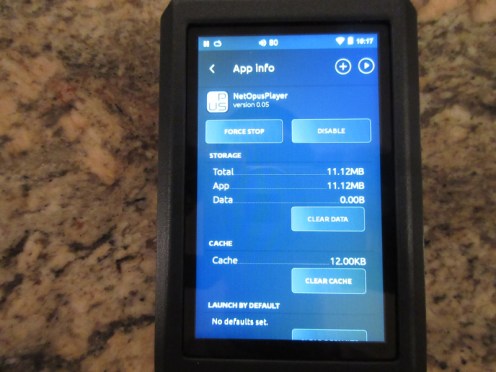
where you click on ‘+’ to open a list of available apk files stored \Download\ directory:
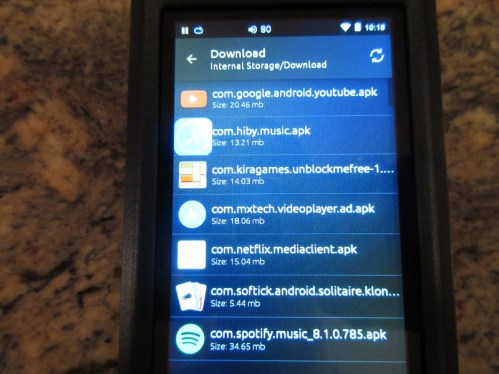
and click on the one you want to install:
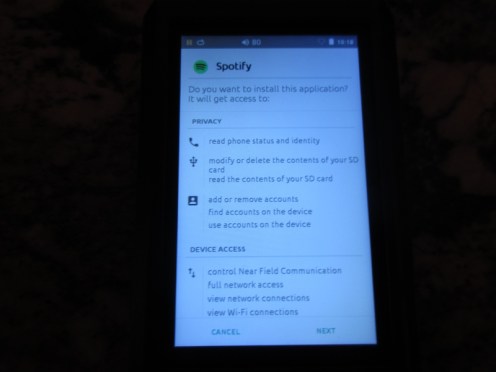
When installation is done, select Close (don’t Open the app) and go back to Settings -> Streaming to select which app you want to run from the list.
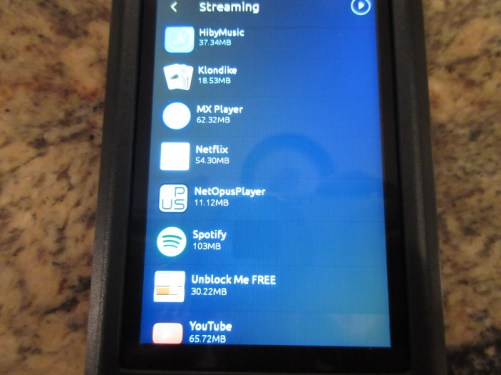
What I found so far, YouTube will obviously not play because it needs Google Play, but if you search on XDA-Developers forum you can find a special version of YT which bypasses Google Play verification. Netflix opens-up, displays the shows, but when you click play – it buffers with Loading… and I can hear the audio but can’t see the video. This is as far as I can get to view the list of shows, but can only play audio, so hoping there will be some workaround for this as well:

But, if you want to play videos, copy them to internal storage and install MX Player which has every latest codec under the sun. Here, just tried it playing Happy Feet (audio and video in sync, looks and sounds very good):

You can also play some games, works fine with Unblock Me and Solitaire:


Of course, keep in mind that once you perform Factory Reset – all the apps and apk files are deleted from internal memory, and you must repeat the steps above. I hope that in a future theBit guys will allow installation of apks files from a flash card since typically microSD is not erased during factory reset. This way you don’t have to copy apk files again, and can just re-install it from uSD card.
The good news, you can now side-load apks of the apps, but of course at your own risk since not everything is guaranteed to work with Opus#3.
Page 3: Sounds analysis, Comparison, Pair up, Wired/wireless Connection, Conclusion.

 Twister6 Reviews
Great review, i have Opus 3 incoming and will pair it with Andromeda.
Can you give some impression with those pair up?
Thanks
LikeLike
just tried it, a really good pair up. Andromeda sounds a little more mid-forward. Not sure what source you are coming from and how it pairs up with Andromeda, but in this pair up bass is a little more balanced and mids are a little more forward. Very natural sound. I like it!
LikeLike
Excellent review, I really like your comparisons. One thing I am not sure is that #3 having a Line Out. Please correct me if it is having one and how to enable it.
LikeLike
Look under my review, on the 2nd page among GUI pictures. When you pull down the notification bar to reveal shortcuts menu, one is Line Out to enable it.
LikeLike
thinking of swapping out my mojo/ipod 6 ”brick” out for either the opus 2/3 or ibasso dx200…..decisions….
LikeLike
Any idea how this one compares to the Pioneer 300R, battery wise using Spotify? I used to have the #1 but wanted something with streaming so I switched to the Pioneer which is good but streaming Spotify kills the battery fast unfortunately. I did love the sound of the #1 so I’m sure I’d love the #3 even more. I don’t mind CL sound vs the Sabre sound.
LikeLike
Sorry, don’t have any pioneer/onkyo DAPs for sound comparison. And, Opus#3 battery does go down when you are loading apps, like Spotify, due to wifi radio being on and also because Opus #2 and #3 don’t have open Android OS.
LikeLike